In our analysis of Guccifer 2.0's documents, we make specific technical claims about how Microsoft Word 2007 handles metadata—claims that are central to proving the documents were created through file-system copying rather than "Save As" operations or sequential editing.
Rather than asking you to trust these assertions, this guide shows you how to verify them yourself.
Using a free copy of Word 2007 (available from Archive.org), you can reproduce every test described below and confirm that Word 2007 behaves exactly as we claim. These aren't theoretical predictions—they're observable, reproducible behaviors you can verify in minutes.
This guide provides step-by-step instructions for testing three specific Word 2007 behaviors:
- How "Save As" updates the creation time — Why \creattim values rule out this method
- How editing time is tracked — Why identical \edmins values don't preclude content replacement
- Sequential vs. parallel workflows — Why RSID patterns prove systematic template reuse
Each test includes:
- Clear procedures you can follow
- Expected results with explanations
- Screenshots showing actual behavior
- How the results relate to the Guccifer 2.0 analysis
If you've read the main article and want to verify our technical claims about Word 2007 behavior, this guide provides the exact tests to run.
If you haven't read the main article yet, we recommend starting there to understand the context: [Guccifer 2.0's Document Fabrication Assembly Line: The 38KB Smoking Gun]
If you're a researcher examining other leaked documents and need to understand Word 2007 metadata forensics, this guide provides reusable methodology.
- Microsoft Word 2007 — Free download: [Archive.org]
- Windows environment — Virtual machine is fine (Word 2007 runs on Windows 7+)
- Text editor — Notepad or any plain text editor
- About 20 minutes — To run all three tests
- No specialized tools — Everything uses standard Windows features
The Verification Principle
Every technical claim in our Guccifer 2.0 analysis can be independently verified. This guide is part of that commitment to transparency:
- Main article → Provides interactive highlighting of evidence and links to original documents
- RSID tables → Shows revision history comparisons
- This guide → Lets you verify the underlying software behavior claims
- Word 2007 identification guide → Shows how we determined the software version
No "trust us"—just "test it yourself."
This guide focuses on Word 2007 metadata behavior—the technical foundation for our analysis. It does not re-prove the entire Guccifer 2.0 case.
What this guide does is remove any doubt about whether we correctly understand how Word 2007 handles version numbers, editing times, and RSID accumulation. Once you've verified these behaviors yourself, you can assess whether our interpretation of the Guccifer 2.0 metadata is sound.
New to this research? Start with the main article first, then return here to verify technical claims.
Ready to verify? Jump to:
Looking for other verification resources?
Test 1: Save-As Behavior
Purpose: Verify that Word 2007's "Save As" operation increments the \vern (version) value.
Why this matters: Guccifer 2.0's documents 1.doc, 2.doc, and 3.doc all have identical \vern values (32893). If any were created using "Save As" from another, the version number would have incremented. This test proves "Save As" wasn't the method used.
Materials needed:
- Word 2007
- Guccifer 2.0's "1.doc" (download from main article)
- Plain text editor (Notepad works fine)
Procedure:
Step 1 - Create a test copy
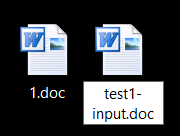
Copy Guccifer 2.0's "1.doc" and name the copy "test1-input.doc".
Step 2 - Check the input file's creation time
Open "test1-input.doc" in a plain text editor.
Press CTRL+F to search for "\creatim"
You should see: \creatim\yr2016\mo6\dy15\hr13\min38
This represents: June 15, 2016 at 1:38 PM
Step 3 - Note the current time
Check your system clock and note the current date and time (you'll compare this to the new creation time).
Step 4 - Open in Word 2007
Open "test1-input.doc" in Word 2007.
Step 5 - Use Save As
Click The Office Icon → Save As.
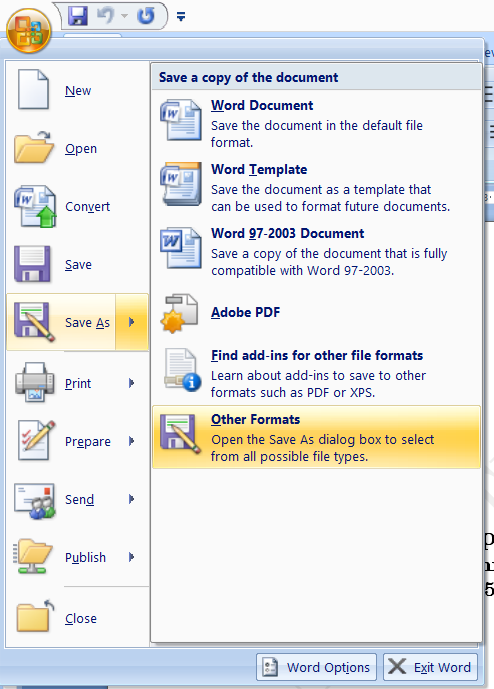
Name the file "test1-output.doc".
IMPORTANT: In "Save as type" dropdown, select "Rich Text Format (*.rtf)"

(Guccifer 2.0's documents are RTF files with .doc extensions)
Click Save.
Step 6 - Check the output file's creation time
Open "test1-output.doc" in a plain text editor.
Search for "\creatim"
Note the new timestamp
Expected Result:
Input: \creatim\yr2016\mo6\dy15\hr13\min38
Output: \creatim\yr[current year]\mo[current month]\dy[current day]\hr[current hour]\min[current minute]
The creation time updated to the current date and time when you performed the "Save As" operation.
What this proves:
Every time you use "Save As" in Word 2007, the new file receives a fresh creation timestamp. If Guccifer 2.0 had used "Save As" to create 2.doc from 1.doc, or 3.doc from 2.doc, each document would show a different creation time. Instead, all three documents show the exact same timestamp—2016-06-15 13:38:00—proving they were created through file-system copying (which preserves the original creation time) rather than "Save As."
Test 2: Editing Minutes Tracking
Purpose: Verify that Word 2007 only increments \edmins (editing minutes) when work spans multiple clock minutes.
Why this matters: Documents 1.doc and 2.doc both show \edmins2 (2 minutes of editing). Some might argue this is anomalous—how could someone paste entirely different content without adding editing time? This test shows it's easily reproducible if the work happens within a single clock minute.
Materials needed:
- Word 2007
- Guccifer 2.0's "1.doc"
- Plain text editor
- Some text ready in your clipboard (for pasting)
- A clock with seconds display
Procedure:
Step 1 - Prepare the test file
Copy Guccifer 2.0's "1.doc" and name it "test2.doc".
Step 2 - Prepare content to paste
Copy some text to your clipboard (any paragraph or two will work).
This will replace the document's body content.
Step 3 - Watch the clock and perform rapid editing
CRITICAL: Steps 3a, 3b, and 3c must all complete within the same clock minute.
Wait until your system clock shows :00 seconds (start of a new minute).
When the minute changes, immediately begin:
Step 3a - Open "test2.doc" in Word 2007
Step 3b - Select all content (CTRL+A) and paste your clipboard content (CTRL+V)
Step 3c - Save the file (CTRL+S or File → Save)
You should complete all three steps in under 60 seconds.
Step 4 - Check editing time in modified file
Open "test2.doc" in a plain text editor.
Search for "\edmins"
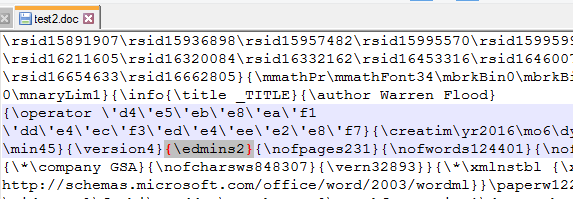
View of test2.doc in Notepad++ following open, edit and save within the same minute
Note the value (should still be 2)
Step 5 - Check editing time in original file
Open the original "1.doc" in a plain text editor.
Search for "\edmins"
Note the value (should be 2)
Expected Result:
Original: \edmins2
Modified: \edmins2
No increment occurred despite replacing all content.
What this proves:
The identical \edmins value between 1.doc and 2.doc doesn't mean the content wasn't replaced—it just means the replacement happened fast enough to complete within a single clock minute. Word 2007's editing time counter works in minute buckets, not second-by-second tracking.
Bonus test: If you want to see the counter increment, repeat the test but wait 61+ seconds between opening the file (Step 3a) and saving it (Step 3c). The \edmins value will increase to 3.
Test 3: Sequential vs. Parallel Workflows
Purpose: Determine whether documents were created sequentially (1→2→3) or in parallel (1→2 and separately 1→3).
Why this matters: In the main article, we note that 3.doc contains RSIDs from 1.doc but NOT from 2.doc. If Guccifer 2.0 had worked sequentially—editing 1.doc to create 2.doc, then editing 2.doc to create 3.doc—we would expect 3.doc to contain RSIDs from both prior documents. Instead, we see a parallel pattern: both 2.doc and 3.doc were created independently from 1.doc.
This test demonstrates both patterns so you can see the difference.
Materials needed:
- Word 2007
- Guccifer 2.0's "1.doc"
- Plain text editor
- Two different text samples ready to paste
Procedure A: Sequential Workflow (1→2→3)
Step 1 - Copy the base file
Make a copy of "1.doc" named "test3-sequential.doc"
Step 2 - Create the "second" document
Open "test3-sequential.doc" in Word 2007
Select all (CTRL+A) and paste your first text sample
Save as RTF format with name "test3-doc2-sequential.doc"
Note: This simulates creating 2.doc from 1.doc
Step 3 - Create the "third" document from the second
Open "test3-doc2-sequential.doc" in Word 2007
Select all (CTRL+A) and paste your second text sample (different from first)
Save as RTF format with name "test3-doc3-sequential.doc"
Note: This simulates creating 3.doc from 2.doc
Step 4 - Extract RSIDs from sequential doc3
Open "test3-doc3-sequential.doc" in plain text editor
Search for "\insrsid" and note the different RSID values you find
You should see multiple different RSIDs because this document has been through three editing sessions
Procedure B: Parallel Workflow (1→2 and 1→3 independently)
Step 5 - Create second document from original
Copy "1.doc" and rename to "test3-doc2-parallel.doc"
Open in Word 2007
Select all (CTRL+A) and paste your first text sample
Save
Step 6 - Create third document from original (NOT from doc2)
Copy "1.doc" again (fresh copy) and rename to "test3-doc3-parallel.doc"
Open in Word 2007
Select all (CTRL+A) and paste your second text sample
Save
Step 7 - Extract RSIDs from parallel doc3
Open "test3-doc3-parallel.doc" in plain text editor
Search for "\insrsid" and note the RSID values
Compare the Results:
Sequential pattern (1→2→3):
Doc3 will contain RSIDs from:
- Original editing session (from 1.doc)
- Second editing session (when 2.doc was created)
- Third editing session (when 3.doc was created)
Result: Layered, accumulated RSIDs
Parallel pattern (1→2 and 1→3):
Doc3 will contain RSIDs from:
- Original editing session (from 1.doc)
- Third editing session (when 3.doc was created)
Result: NO RSIDs from the second editing session (because doc3 never saw doc2)
What Guccifer 2.0's documents show:
When you examine the actual 2.doc and 3.doc:
- Both contain RSID 11758497 (from 1.doc's contamination session)
- 3.doc does NOT contain RSIDs unique to 2.doc
- This matches the parallel pattern, not sequential
What this proves:
Guccifer 2.0 created 2.doc and 3.doc independently from 1.doc—not by sequential editing. The workflow was:
1.doc (contaminated) → copy → edit → 2.doc
1.doc (contaminated) → copy → edit → 3.doc
NOT:
1.doc → edit → 2.doc → edit → 3.doc
This parallel workflow indicates systematic reuse of a contaminated template, not progressive editing of evolving documents. It's consistent with an assembly-line approach: start with the contaminated base, copy it for each new document, insert content, release.
Advanced verification:
For researchers who want to verify this against the actual Guccifer 2.0 documents, you can:
- Extract all unique RSIDs from 2.doc
- Extract all unique RSIDs from 3.doc
- Check if 3.doc contains RSIDs that appear in 2.doc but not in 1.doc
If 3.doc was made from 2.doc, it would inherit 2.doc's unique RSIDs. The absence of these RSIDs proves parallel creation.
Quick Reference: What Each Test Proves
| Test |
Proves |
Rules Out |
| Test 1: Save-As |
\creatim updates with Save-As |
Documents created via Save-As |
| Test 2: Editing Minutes |
Fast edits don't increment \edmins |
Anomaly in identical editing times |
| Test 3: Sequential vs. Parallel |
Parallel creation from template |
Sequential editing workflow |
This guide is part of an ongoing effort to make document forensics transparent and independently verifiable. If you find errors or have suggestions for additional tests, please provide feedback.